
Why Is Your Security Camera Showing Live Video but Not Recording?
Live video can continue working even when recording has stopped, because viewing and recording do not depend on all the same settings, equipment and storage. Here is what causes it, and how to check yours before you need the footage.
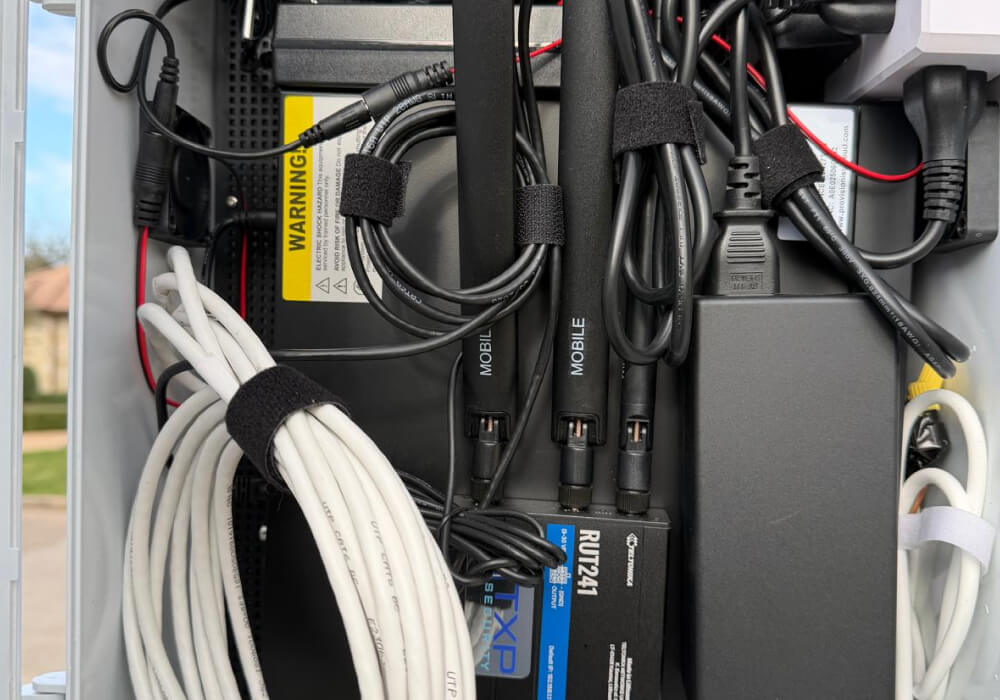
A camera showing live video is not proof that anything is being saved. The problem often goes unnoticed until someone searches for footage of an incident and finds an empty timeline, on a system that looked normal every day leading up to it.
The live picture confirms that the camera is reachable, but it does not confirm that the recorder, recording schedule or storage is working. A camera can be online, logged in, and sending a clean picture while nothing at the other end is writing that picture down.
Live video and recording are two separate jobs
When you open the app or pull up the video wall, you are asking the camera to send you a stream right now. The system can deliver that live stream without successfully writing it to the recorder, onboard storage or a cloud account.
Saving video is a separate job. To save the video, the camera or recorder must be assigned to working storage and configured for continuous, scheduled or event-based recording. The two jobs run separately, so one can fail completely while the other keeps working.
Looking at the live feed every morning does confirm a few things, and it is worth being clear about exactly which ones. The list is shorter than most owners expect, and everything that goes wrong in this article hides in what that list leaves out:
- The camera has power: it is running and producing an image.
- A network path is working: the camera can send a live stream to the recorder, app or viewing station you are using.
- The login is still valid: the recorder or the app can connect and request the stream.
None of those three involve storage. A recorder with a failed hard drive can still show you cameras in full color, in real time.
Start with the recording schedule and the motion settings
Recording settings get touched more often than people expect. Someone adjusts them during a storage cleanup, or after a complaint about overnight notifications, or when a new camera goes in. A change made for a good reason at the time often never gets put back, and nothing in the system flags it.
A property manager who asked for fewer alerts at night may have had a camera switched to event-only recording months ago. The notifications stopped, which was the point. The recording narrowed at the same time, and nobody linked the two. These settings all sit on the same few screens, so open every one of them rather than only the one you suspect:
- Continuous recording was switched to event only: the camera now saves video only when something crosses its rules, so a person walking slowly along the edge of the frame may never trigger it.
- The motion area was made too small: someone shrank the active zone to cut down on false alerts, and the part of the scene you actually care about now sits outside it.
- The camera is filtering for the wrong thing: a camera watching a parking area but set to record people only will ignore vehicles all night, which happens easily when AI camera analytics were tuned to solve a different problem.
- There is a gap between two schedules: business hours and after hours are usually set up as separate blocks, and an uncovered hour between them is easy to create and very hard to see.
When the storage stops accepting video
A recorder’s hard drive works differently from the one in an office computer. In most commercial systems it writes video around the clock, for years, without a break. Recorder drives eventually wear out. Some systems display or send a storage warning, but that warning is easy to miss when alerts have not been configured or nobody regularly checks the recorder.
That is what makes storage failures so easy to live with for months. Live viewing does not require the recorder to save that stream successfully, so cameras may remain viewable even when the recording drive is full, unavailable or failing. Four situations produce that result, and each one needs a different fix:
- The drive has failed: the recorder keeps running and keeps streaming, and the only indication sits on a status screen nobody has a reason to open.
- A new drive went in but was never set up: the hardware is installed and the recorder can see it, but it was never prepared for use, so there is nowhere for video to go.
- The drive filled up and nothing was cleared to make room: normally the oldest footage is erased automatically as new footage arrives, and when that setting is off, recording stops on the day the drive fills. Everything before that date is still there, which makes the system look healthy until you ask for something recent.
- The drive is producing errors: older footage may remain available even though new recordings are incomplete or have stopped.
Start with the recorder’s storage page. It should show whether the drive is recognized, how much capacity remains, whether overwrite is enabled and whether the recorder has reported a disk error.
A camera can be in the system without being in the recording
Adding a camera to a view and adding it to the recording setup are two separate steps on nearly every platform. After a camera is replaced or added, live view may be restored without the camera being added back to the recording schedule or storage assignment.
On takeovers this is a common finding, including on systems that have otherwise been looked after well. A camera was damaged or replaced at some point, came back on the network at a new address, and live view was restored right away because that is what anyone would check. The recording setup was still attached to the original entry, so the camera streamed for months and saved nothing.
There are a few different ways a camera ends up in this state. Go through them one at a time, because the one that applies decides whether this is a five-minute fix in the software or a call to whoever handles your licensing:
- The camera was added for viewing only: it shows up in every list and gives you a picture, and it was never placed into a recording group.
- A recording license has expired: some systems license recording per camera, and when one lapses, live view usually continues while recording stops.
- The cloud plan does not cover every camera: mixed sites often end up with some cameras on a paid recording tier and others on live view only.
- A replaced camera sits at a new address: the recorder now holds two entries for the same camera, one of them dead, and the recording setup points at the wrong one.
Live view and recording may not be using the same video
Many commercial cameras provide a main stream and a lower-bandwidth substream. The system may use one for the video wall and another for recording, depending on how the recorder has been configured.
That split is behind a failure that is very hard to spot from the outside. If a quality or format setting on the recorded stream is changed to something the recorder cannot handle, that stream can fail while the one feeding your video wall continues to work. Your live view looks entirely normal, because it was never using the stream that broke. Suspect this whenever recording stopped shortly after someone adjusted image quality or updated a camera.
Cloud cameras fail in a different way
Cloud-managed camera systems do not all store video the same way. Some upload recordings directly, while others keep footage on the camera and synchronize it with the cloud, so an internet outage affects each platform differently. Live viewing on many cloud platforms works over a local connection, so it keeps performing normally even when the upload is falling behind.
What stops is the saving, and nothing at your end looks any different. A retail manager checking the storefront feed on a phone sees exactly what they expect to see, while the clips from the previous night were never fully stored. Three conditions account for most of it:
- The upload cannot keep pace: limited upstream bandwidth can delay cloud access or create recording gaps, depending on whether the system has local storage to hold the footage until the connection recovers.
- The camera is only uploading events: it holds a short rolling buffer locally and sends up triggered clips only, so anything that did not trigger disappears within hours.
- The subscription or trial has ended: the camera stays online and viewable while the recording service behind it has stopped.
An internet outage behaves differently again, so treat a dropped connection as its own separate question.
Sometimes the footage exists and cannot be found
An empty search does not always mean nothing was recorded. A recorder that loses its time reference, usually after a power event or an update that reset it, keeps saving video against an incorrect clock. The footage is there, filed under a date and time that does not match the night you are searching.
Time zone resets do a smaller version of the same thing, shifting everything by several hours so an overnight event lands in the middle of the previous afternoon. Before deciding a night was never recorded, check the recorder’s date and time against your phone, and see whether the oldest and newest footage on the timeline match what you expect to have.
How to catch this before you need the footage
Some of these failures produce alerts, but those alerts only help when they are enabled and sent to someone who will act on them. The live picture does not change either way, so nothing on the video wall prompts you to go and check. The only reliable protection is a short habit that tests whether video is being saved, rather than whether it is being shown.
This matters more across multiple locations, which is common for Dallas businesses running sites in Plano, Irving, and Richardson alongside the main office. A manager who spot-checks one location tends to assume the other four are set up the same way, and when those sites were installed in different years by different people, they usually are not. A workable routine looks like this:
- Pull a clip from three days ago, once a month: live viewing proves nothing, and playback from a past date is the only check that tests storage, schedule, and licensing together.
- Look at the oldest day still on the timeline: that tells you your real retention, which is often shorter than what you believe you have, particularly if cameras were added without adding storage.
- Open the storage page, not the camera list: drive health, capacity, and the automatic delete setting all live there, and none of them show up anywhere else.
- Turn on health alerts and send them to a person: most systems can email a warning about a lost camera or a failing drive, and the setting does nothing if it points at an inbox nobody reads.
- Check recording again after any change: whenever a camera is replaced, the network is reconfigured, or firmware is updated, confirm every camera is still in the recording setup, since those are the moments that break it. Password and firmware practices need separate attention, which we covered in camera network security.
When it is time to stop checking
Schedules, motion areas, and time settings are all reasonable to work through yourself, and a fair number of empty timelines get solved right there. Storage failures, licensing, and video settings are a different matter, because those involve replacing hardware or rebuilding a recording configuration. If the storage page is showing an error, or if recording stopped and nothing in the schedule explains why, more setting changes tend to make the situation harder to read rather than easier.
There is also a question about the system itself. Was it ever set up to tell you when something fails? A commercial camera system that cannot report its own storage problems will keep this hidden for as long as you own it.
Get your Dallas camera system checked before the next incident
If you are not certain your cameras are actually saving video, TXP Security can review your existing system across Dallas, Plano, Irving, Richardson, and the surrounding areas. We verify storage health, recording schedules, real retention, and which cameras are currently being recorded, then set up alerting so a failure reaches you the week it happens instead of months later.